Appearance
Adding an Item to Inventory
Add a quantity of an existing item to a site-location in inventory, starting from the Items page.
Please follow these steps to add an item to inventory:
Select Management > Items > Items. The Items page appears.
For the item that you want to add to the inventory, select the ... More Options button. The Add to Inventory button appears.
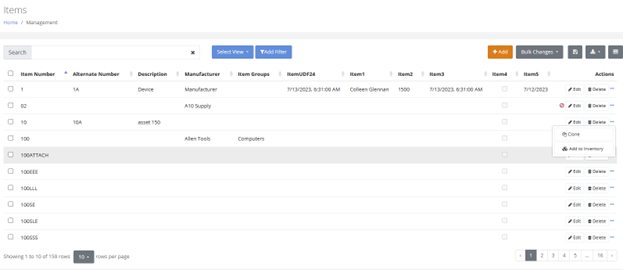
Click the Add to Inventory button.
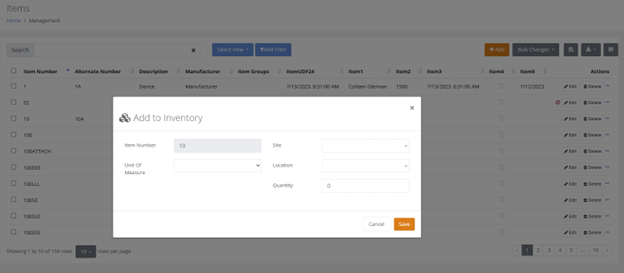
The Add to Inventory popup appears.
- If the item is disabled the Add to Inventory dialog will not appear.
Enter the required information:
- Unit of Measure: required for all inventory records.
- Site: required for all inventory records.
- Location: required for all inventory records.
- Quantity: note that the quantity for a serial item defaults to one and cannot be changed.
- Serial Number: required for an item that uses serial numbers.
- Lots: required for an item that uses lots.
- Expiration Date: required for an item that uses expiration dates.
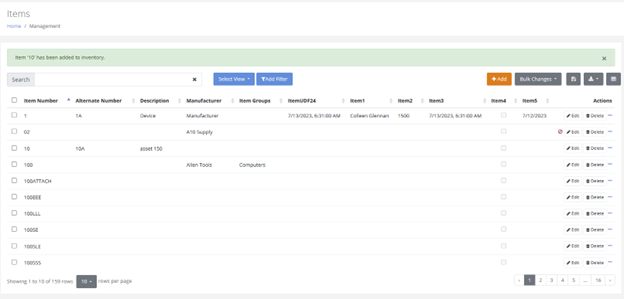
Press Save. The popup closes and a message notifies you that the item has been added to inventory.
Related
- IntelliTrack® Consumable Inventory Guide — the same task, with the Administrator and User options
- IntelliTrack® Consumable Inventory Guide — serial numbers, lots, expiration dates and unit cost tracking
- IntelliTrack® Consumable Inventory Guide — adjusting the quantity after the item is in inventory